Bookmark This
  • Our Gaming Emulators GuideGAMING
  • Why I Believe That Video Game Piracy Is A Good ThingOPINION
  • Cake CrumbsPEOPLE
  • Beggars of The InternetSOCIAL MEDIA
Our Gaming Emulators Guide1 Why I Believe That Video Game Piracy Is A Good Thing2 Cake Crumbs3 Beggars of The Internet4
http://wowslider.com/ by WOWSlider.com v8.5

How To Disable 'Articles For You' and Get The 'Bookmarks' and 'Recent tabs' Buttons Back in Google Chrome Version 60 for Android

with
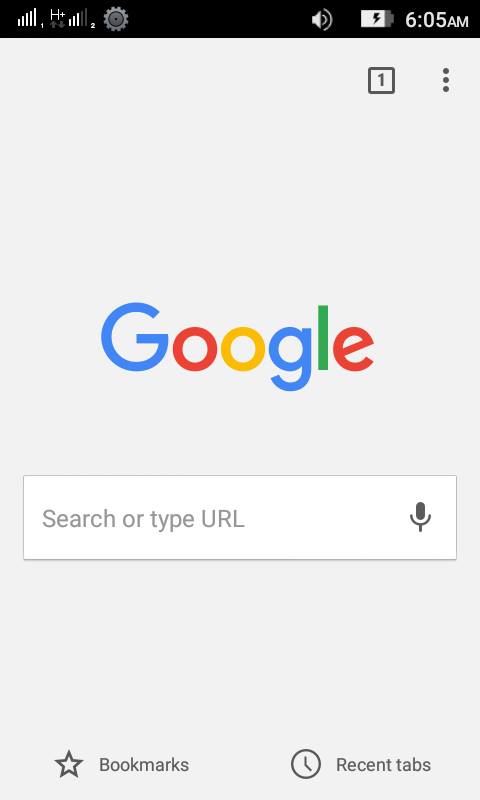
Since the new version 54 update enrolled on the Google Chrome of Android, it replaced the 'recent tabs' and 'Bookmarks' buttons on the homepage with 'Articles for you', which is basically random news posts from different websites. And on version 60, they altered the previous method of disabling the 'Articles for you' and getting the bookmarks back.


The 'Articles for you' homepage in Chrome version 60.


Several people are having trouble figuring out how to remove the 'Articles for you' from their Chrome and go back to the usual homepage with the 'Bookmarks' and 'recent tabs'.

Here's how you can get the original home screen with the bookmarks and recent tab buttons back and disable 'articles for you':

Firstly, open Chrome on your Android device, and enter this url in the address bar:
chrome://flags/#enable-ntp-popular-sites

The url will open this screen.


Afterwards, tap on 'Default' on the 'Show popular sites on the New Tab page' option, and choose 'Disabled' from there.


Then, open this url in your address bar:
chrome://flags/#enable-ntp-remote-suggestions


The url will open this screen.


Then tap on 'Default' on the 'Show content snippets on the New Tab page', and choose 'Disabled' from there.


After that, simply relaunch your Google Chrome and the homepage will be back to normal, with 'Articles for you' disabled and 'Bookmarks' and 'New Tab' buttons back. That's all!
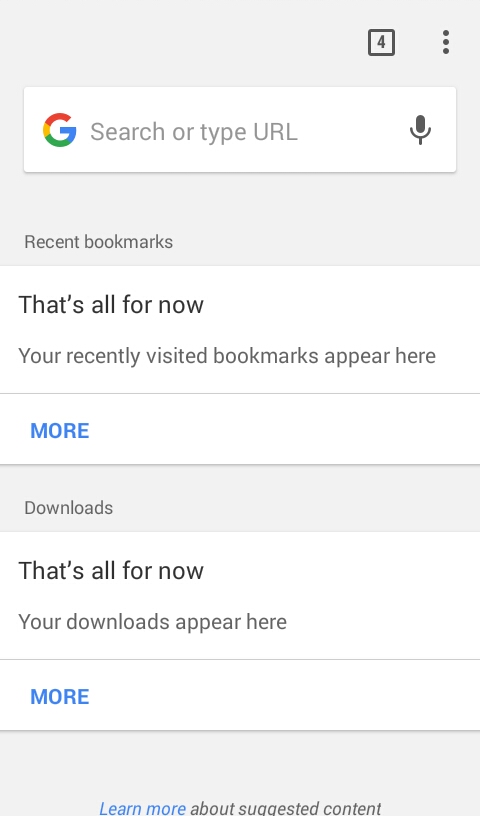


Back to the normal layout.
READ THIS
Published On Entertainment Ghost At Sunday, September 10, 2017

How To Disable 'Articles For You' and Get The 'Bookmarks' and 'Recent tabs' Buttons Back in Google Chrome Version 54 for Android

with
Since the new version 54 update enrolled on the Google Chrome of Android, it replaced the 'recent tabs' and 'Bookmarks' buttons on the homepage with 'Articles for you', which is basically random news posts from different websites.


The 'Articles for you' homepage in Chrome version 54.


Several people are having trouble figuring out how to remove the 'Articles for you' from their Chrome and go back to the usual homepage with the 'Bookmarks' and 'recent tabs'.

Here's how you can get the original home screen with the bookmarks and recent tab buttons back and disable 'articles for you':

Firstly, open Chrome on your Android device, and enter this url in the address bar:
chrome://flags/#enable-ntp-popular-sites


The url will open this screen.


Afterwards, tap on 'Default' on the 'Show popular sites on the New Tab page' option, and choose 'Disabled' from there.


Then, open this url in your address bar:
chrome://flags/#enable-ntp-snippets


The url will open this screen.


Then tap on 'Default' on the 'Show content snippets on the New Tab page', and choose 'Disabled' from there.

After that, simply relaunch your Google Chrome and the homepage will be back to normal, with 'Articles for you' disabled and 'Bookmarks' and 'New Tab' buttons back. That's all!


Back to the normal layout.
READ THIS
Published On Entertainment Ghost At Thursday, October 27, 2016

The Complete Guide To Manage Google Chrome's Supervised Users

with


Google has just added a new feature called "Supervised User Account" which allows you to see all browsing activity, block sites/sub-domains, and other cool features to ensure your child's not going on all those sites you don't want him to see, which we earlier mentioned here. Here is the complete and easy guide on how to use this new feature and maintain the online activities of the supervised users!


Getting Started


First, you need to be signed into Chrome Sync, which you can do by clicking on Chrome > Chrome Menu > Sign in to Chrome.

Creating Profiles


After you sign-in to Chrome, click on the Chrome Menu  and click on "Settings" and there, click on "Add New User". or simply copy this "chrome://settings/createProfile" address and paste it in your Chrome browser and press enter.


Now create a new user profile, enter the desired name and check/tick the "This is a supervised user managed" box and click create.


 After creating a "supervised user" profile, Chrome will show you a pop-up and sent an e-mail to you about the supervised user account's way of usage and other information.


Managing Users

You can manage all "supervised users" from https://www.chrome.com/manage.

Supervised User Manager

On the Supervised User Manager you can see all user activity which includes website names, address, visit time, day, removing users, granting permissions and responding to in-coming user requests and controlling search safety.


  Using Supervised User Manager

If you want to allow only specific sites to the supervised user account, click on "Manage" under the "Permissions" section and choose "only specific sites" from the menu and then add the desired site addresses and click on "Ok". You can block a whole domain and/or allow only sub-domains from a full site, by choosing the different options under the "Behavior" section.


To block specific sites click on "Manage" and enter the address of the sites you want to block and click on "Ok". You can block whole domains, or block only specific addresses or just allow sub-domains from a full site, by choosing the different options from the "Behaviour" section.


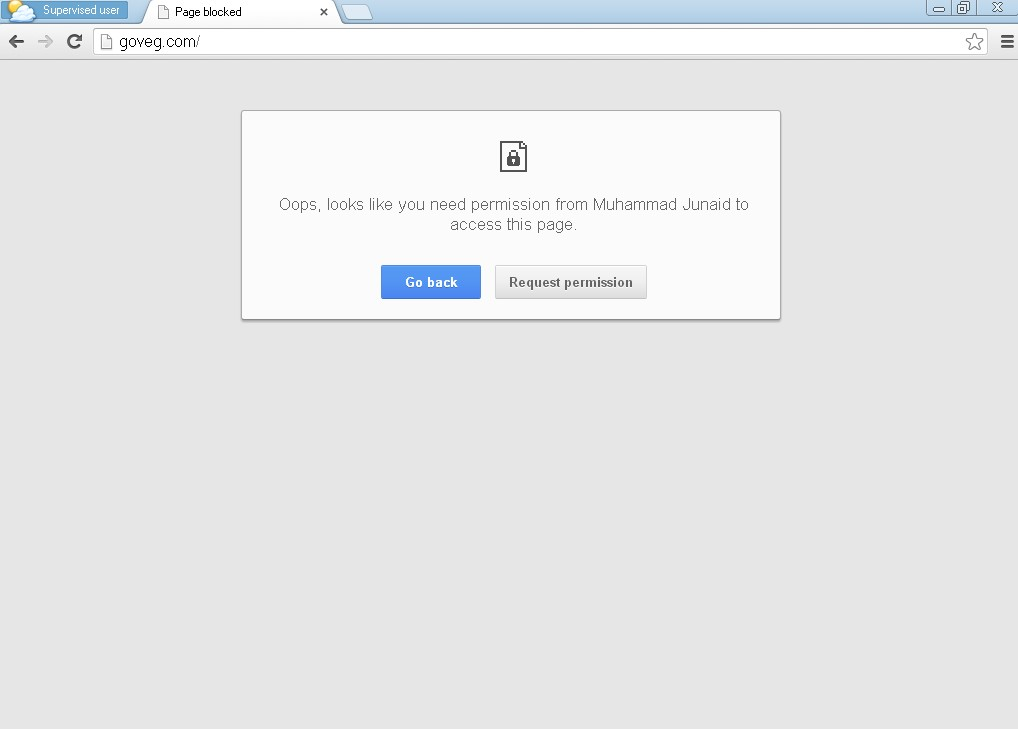
While a supervised user account is trying to access blocked sites, the user will see a notification saying "You need a permission from - Your Name- to access this page" and the user can send you a request asking you to allow that site, which you can allow or deny the request from the manager.


This is an example picture showing an active dashboard of a manager account which displays requests, browsing activity, and blocked sites:


READ THIS
Published On Entertainment Ghost At Wednesday, January 15, 2014

Google Chrome 32 Is Now Available With Major Updates

with

Google has officially released Google Chrome 32 for Windows, Mac, Linux and other platforms. The latest release includes new features and improved malware detection. A major new feature is the "supervised users". Currently in beta, you can create special supervised accounts to review all the browsing activity of those accounts, as well as set up site restrictions to determine which sites they can access. You have different options, such as blocking specific sites, allowing access to only specific sites, or blocking/allowing access to only sub-domains of a site instead of the whole. 

Another new feature is that it will show an icon on the 'noisy tabs', which play sound or videos(including webcam content) in them, so you wont have to look for the tab causing the sounds. These are the icons which appear different for live streaming, sound and video content respectively, as well as the new malware warning:


 Casting  TV
 Playing audio
Using your webcam

Malware warning while downloading infected file


Some other new features/updates mentioned by Google on the official Chrome Blog:
  • When pressing the overview mode button (F5), you will see an organized view of their windows. 
  • Pro-tip: Also works with three finger gesture 
  • Sync/Auth failures notifications on Chrome OS are now a part of the notifications system. 
  • Get Help app has been updated to include a "Discover" section. 
  • The new auto-click feature, which will generate a click after the mouse pointer is moved, is now available via Accessibility settings. 
  • You can now use supervised users to help family members who may need some guidance browsing the web. Once you create a supervised user, you can visit chrome.com/manage to review the supervised user’s browsing activity and determine site restrictions. 


You can always download latest Chrome Release from the following links:

Online Installer (Web Installer), Offline Chrome Installer for one user account,  Offline Chrome installer for all user accounts .

READ THIS
Published On Entertainment Ghost At Wednesday, January 15, 2014