Bookmark This
  • Our Gaming Emulators GuideGAMING
  • Why I Believe That Video Game Piracy Is A Good ThingOPINION
  • Cake CrumbsPEOPLE
  • Beggars of The InternetSOCIAL MEDIA
Our Gaming Emulators Guide1 Why I Believe That Video Game Piracy Is A Good Thing2 Cake Crumbs3 Beggars of The Internet4
http://wowslider.com/ by WOWSlider.com v8.5

Microsoft Has Confirmed That Pirated Users Will NOT Get A Free Genuine Windows 10 Upgrade

with


Earlier, about everyone believed Microsoft meant that they will be offering a free genuine upgrade to Windows 10 within the first year not only to genuine users, but even pirated(non-genuine) users.

However, Microsoft has clarified that their statement was misinterpreted. Microsoft representatives have indicated that the users that have pirated copies of Windows 7 and 8 will be able to upgrade to Windows 10 but the version they will get will be considered 'unofficial', which means the update will be non-genuine, just like their previous version of Windows was. Microsoft has stated:

With Windows 10, although non-genuine PCs may be able to upgrade to Windows 10, the upgrade will not change the genuine state of the license ... If a device was considered non-genuine or mislicensed prior to the upgrade, that device will continue to be considered non-genuine or mislicensed after the upgrade.

Microsoft has not yet revealed what the difference between the genuine and non-genuine versions of Windows 10 will be, but people are speculating the non-genuine version might be a 'lite' version of the operating system, or will have restrictions in features, or a ban from the Windows Store and such.
READ THIS
Published On Entertainment Ghost At Friday, March 20, 2015

Microsoft Will Be Offering Free Upgrades To Windows 10 Even For Users With Pirated Copies of Windows 7 and 8

with
Microsoft is offering free upgrades to Windows 10 even for users with pirated copies of Windows 7 and 8


According to a report, Microsoft is going to upgrade not only genuine copies of Windows 7 and 8 to Windows 10 for free, but also pirated ones.

The head of Microsoft's operating systems unit, Terry Myerson, has stated while in China this week that:
We are upgrading all qualified PCs, genuine and non-genuine, to Windows 10.

Since it was said in China, it caused confusion which made people think that the free Windows 10 upgrade could be limited to China, however, Microsoft has since confirmed that it is not limited to China and anyone around the world with a device that can handle Windows 10, will receive the free upgrade.

The reason for this decision is to fight rampant piracy of the Windows operating system, stating:
We believe customers over time will realize the value of properly licensing Windows and we will make it easy for them to move to legitimate copies.

Windows 10 is expected to be released this Summer, and is said to have more features being added after release. Those using Windows 7 and 8 will be offered a free upgrade to Windows 10 in the first year of it's release.

Are you excited for Windows 10, or plan to stick to your current operating system? Leave your comments, opinions, feedback and issues in the comments section below!
READ THIS
Published On Entertainment Ghost At Wednesday, March 18, 2015

10 Free Must Have Windows Phone Apps

with


In this post, we wont be discussing social or top apps, we will be discussing short and free apps that are very useful, and you wont have to find specific apps for your routine tasks.


10. Ringtone Maker
Price: Free 
Developer: Microsoft Mobile


In Windows Phone 8.1, you cannot set any sound file as a ringtone, you have to follow their official method which is to make a folder of Ringtones from your PC in your phone, and add the sound files that you want to use as a ringtone.

With the use of this app, you can easily trim any DRM-free sound file and use it as a ringtone.


9. 7-zip –ZIP-RAR
Price: Free
Developer: Media Mobile Technologies


7-zip –ZIP-RAR is a free file archiver. It supports zip, 7z,, RAR, ISO, XZ, GZ, LZMA, CPIO, AR, LZOP, LZIP, L74 and BZ2 file formats and can pack and un-pack files' folder, and also supports extracting files into SD Card.


8. Fresh Paint
Price: Free
Developer: Microsoft Corporation


Fresh Paint is a very fun and easy to use painting app that lets you make original artwork, and also lets you apply effects and paint on your existing pictures.

It also has an 'Inspire Me' mode, that gives you the option to use other pictures for inspiration for your artwork.


7. wpTorrent

Price: Free with ads
Pro Version: $2.99
Developer: ErrNet
Alternative recommendation: Torrex Lite


wpTorrent is an ad-supported torrent client for Windows Phone 8.1. It has every feature that a torrent client should have, and gives you unlimited download speed. You can customize it's look as well.


6. The Sound Recorder
Developer: WinMob

Price: Free with ads
Alternative recommendation: Perfect Recorder


The Sound Recorder is a free app that lets you record your voice in WAV and M4A formats. And supports sample rates from 8KHz to 96KHz in Stereo, while 8KHz se 44.1KHz in Mono. It also features the ability to skip silence.


5. Surfy
Price: Free
Developer: Outcoder
Alternative recommendation: Maxthon Browser


Surfy is a highly customizable and feature rich web browser that supports Full-Screen, tabs, voice search, private browsing, themes, download manager, shake to refresh, desktop mode, night dimmer and listen to pages mode. You can also pin your favorite pages to the start screen or can add in to Surfy’s launch pad.


4. Photosynth
Developer: Microsoft Corporation

Price: Free


Photosynth is a panorama app developed by Microsoft which is better than Lumia Panorama.


3. Office Lens
Developer: Microsoft Corporation
Price: Free
Alternative recommendation: CamScanner


Office Lens is a Scanner app that allows you to scan whiteboards, documents, and Business Cards. This app is similar to CamScanner but unlike CamScanner, which forced users to store all their data into CamScanner's cloud storage, Office Lens allows you to save your pictures in Camera Roll but it lacks exporting to PDF.

In Office Lens, you can also directly send your scans to OneNote, PowerPoint, and Word.


2. Remote Desktop
Alternative recommendation: TeamViwer
Price: Free
Developer: Microsoft Corporation


With Remote Desktop, you can remote your PC on your Windows Phone, and use your computer completely on your phone.


1. FLV Player
Price: Free
Developer: Ice Cube Soft


Since the Windows Phone supports only a limited amount of video formats, and if you copy video files from your PC to your phone, you also have to spend time converting the file for it to work on your Windows Phone.

The FLV Player is a free, and simple Video Player that supports FLV, F4V, MKV, VOB, MPG, SWF and MP4 Video Formats and features the ability to resume your video from where you left off, zooming and subtitles.

READ THIS
Published On Entertainment Ghost At Monday, January 12, 2015

AMD Has Clarified That Richard Huddy "Misspoke" About Windows 7 Not Supporting DirectX 12

with


There were many reports stating that Windows 7 will not be supporting DirectX 12, coming from a video of AMD's Chief Gaming Scientist, Richard Huddy at the PDXLAN event. Richard Huddy stated on the event that Windows 7 will not support DirectX 12.

After that, every major news site spread the word and Windows 7 users were greatly disappointed, as well as websites making articles such as "it's time to upgrade your Windows".

However, AMD has clarified that Richard Huddy 'misspoke' about the topic. AMD issued a statement that says:

There have been reports based on a video of Richard Huddy of AMD making speculative comments around DirectX 12 support on versions of Windows. Richard Huddy does not speak for Microsoft, and he was unfortunately speculating from Microsoft’s publication of key dates and milestones for Windows 7 lifecycle and mainstream support policy. Richard has no special insight into Microsoft’s Windows or DirectX roadmaps. Microsoft is a key, strategic partner for AMD and we’re continuously collaborating with them on DirectX 12.
AMD has not stated whether DirectX 12 will be available for Windows 7 or not, but the statement made by Richard Huddy was misspeaking, and they do not have an insight on such things.

DirectX 12 has been said to be a "low level" graphics API and will include many improvements to existing graphics cards, a well as the Xbox One.

PC gamers who do not like Windows 8 are worried about this and are expressing great demand for DirectX 12's availability for Windows 7. 

Microsoft has not made a statement regarding whether DirectX 12 will be supported by Windows 7 or not, but they have confirmed that they are aware of the demand.

Gamers who still use Windows 7 are awaiting an official confirmation from Microsoft on the topic. 
READ THIS
Published On Entertainment Ghost At Sunday, November 16, 2014

Windows 10 Technical Preview: Installation and Hands-On Preview

with
So you want to get your hands on the new Windows 10 Technical Preview, see a hands-on experience, or both? Then you're at the right place! Here, you'll learn how to get your hands on the preview and also see a hands-on experience with it.

If you want to download the Windows 10 Technical Preview, you can get it from here. if you want to try Windows Technical Preview for your company, download enterprise edition version from here.

Before downloading and installing the technical preview, please note that it is not polished and is not completely stable, but it is a rough build with lots of bugs and Microsoft recommends that you install the technical preview on a secondary computer.

We recommend you to be sure to read the Privacy Statements for the Windows 10 Technical Build. Here are some important ones:
  • When you install the Program, we may collect information about your device and applications and use it for purposes such as determining or improving compatibility,
  • When you use voice input features like speech-to-text, we may collect voice information and use it for purposes such as improving speech processing,
  • When you open a file, we may collect information about the file, the application used to open the file, and how long it takes any use it for purposes such as improving performance, or
  • When you enter text, we may collect typed characters and use them for purposes such as improving autocomplete and spellcheck features.

After you have downloaded the Windows 10 Technical Preview ISO, open it with the windows explorer or the program you uses to mount ISO images. Run 'setup.exe' from the drive and your Windows will load the set-up and a  'License terms' screen will appear. Then, the 'Checking For Updates'(see below) screen appears.


Set-up loading in process.

The license terms screen.


The ready to install screen after the set-up successfully loads.


You can now choose to install the preview and whether you want to keep your settings, personal files and applications on your computer.

However, you can change installation type by clicking on "Chose what to keep".


Here you will see three options, If you chose the option 'Nothing', Windows will format your Drive C or the partition in which you have the previous OS installed. If you choose 'Keep personal files only', your files will be safe, but your settings and applications will be removed. If you select "Keep Windows settings, personal files, and apps", you will keep all of your files, settings and applications.

Once you've selected the options of your choice, click the 'Install' button and the installation begins.


Windows 10 Technical Preview being installed.


The installation screen warning the user about the computer being restarted.


The installation reboots the computer and after it comes back, it installs further and after the installation is complete, you see the 'Getting devices ready' screen and then it says 'Getting ready'. After that, you can set the time and date and after that, you get settings similar to Windows 8, such as whether you want to use apps' location or not, and other similar things. Then, you will be asked to either make a Microsoft account or a local account, and then Windows will say 'installing apps' and other similar text, then the computer will finally go inside the Windows.


Desktop on the first boot. Here you will see two new buttons in the task bar. The buttons are 'Search' and 'task view'. You cannot unpin these buttons.


Some applications may not run on the Windows 10 Technical Preview and give you this error. Some anti-viruses do not work on the technical preview, such as avast!. However, many still work such as the AVG anti-virus. Microsoft fixes bugs over time through updates, so there is a possibility that Microsoft might fix these issues through an update as well.


You can resize, uninstall, unpin, and turn-off live preview of the tiles in the Start Menu, by right-clicking them just like in Windows 8.


An example of resizing the tiles.


You can turn remove the tiles from the Start Menu and have a classic Start Menu, however, the search still finds results from both your computer and the internet, which is a Windows 8.1 addition to the search.
You can remove the Bing search by simply going to PC Settings > Search and Apps > Search and turning the metered connection options off.


The Windows 10 Technical Preview's search  comes with the Bing search engine. If you never use Bing search, you may find this feature not rather useless. 


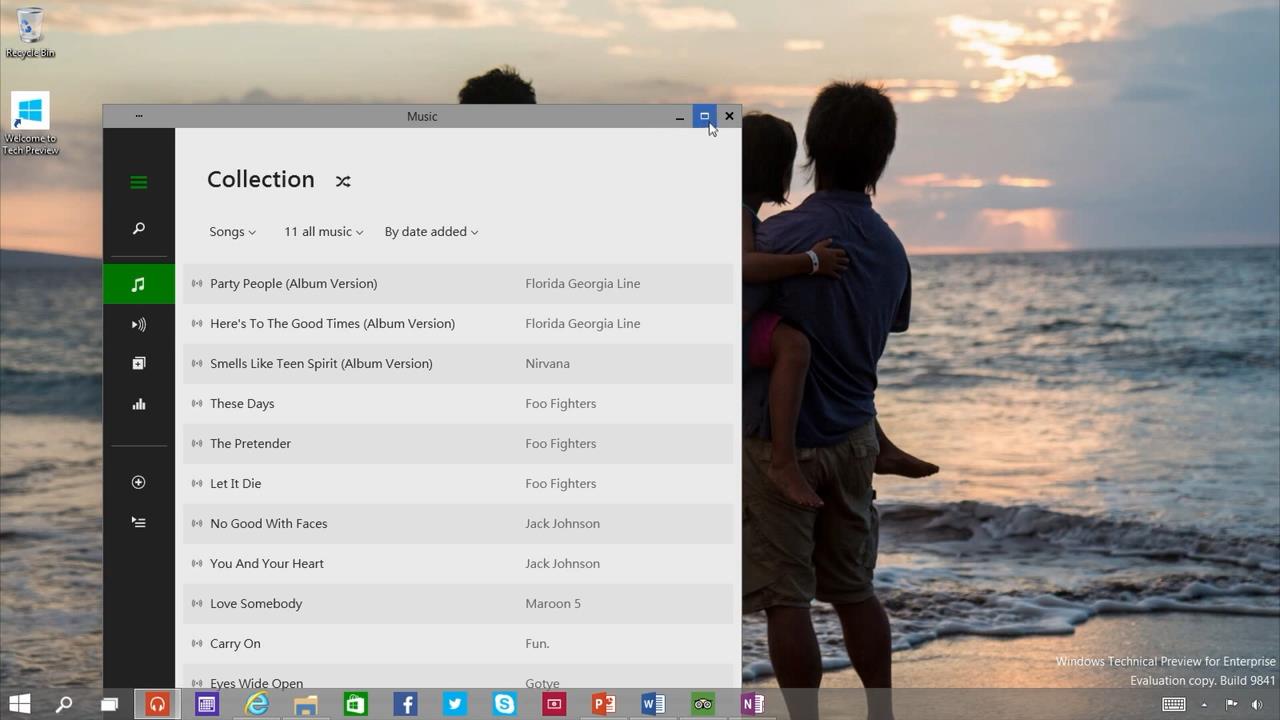
The apps open in the desktop by default. You can make them full screen as opposed to using them on the desktop/windowed, and you can access the applications' options by clicking on the menu from the top of the left side of the application.


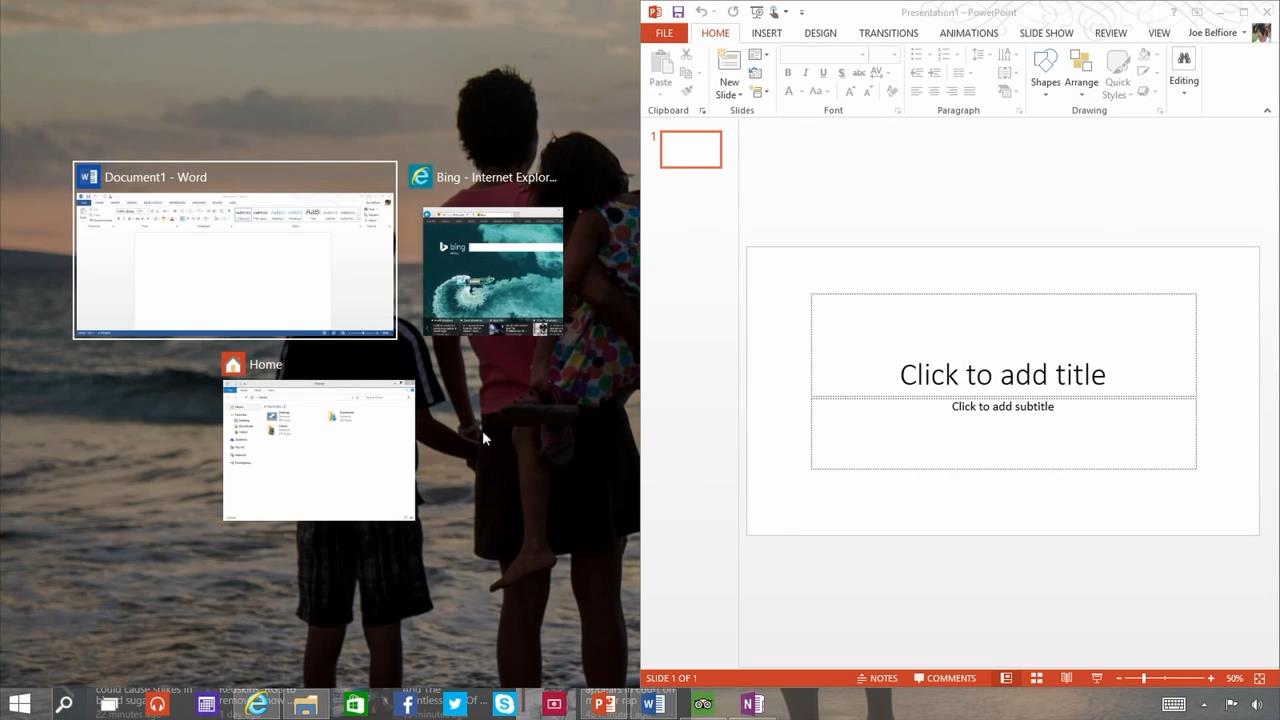
The new Windows 10 Technical Preview snap in action.
You can now 'snap' 4 applications on a screen at the same time in the Windows 10 Technical Preview.


The Taskbar Start Menu Properties in the Windows 10 Technical Preview
The Windows 10 Technical Preview comes with the Start Menu by default. If you prefer the Start Screen instead, you can get it back from the "Taskbar and start menu properties", which you can open by simply right-clicking on the Taskbar, then going to it's 'properties' and then clicking on the 'Start Menu' tab.


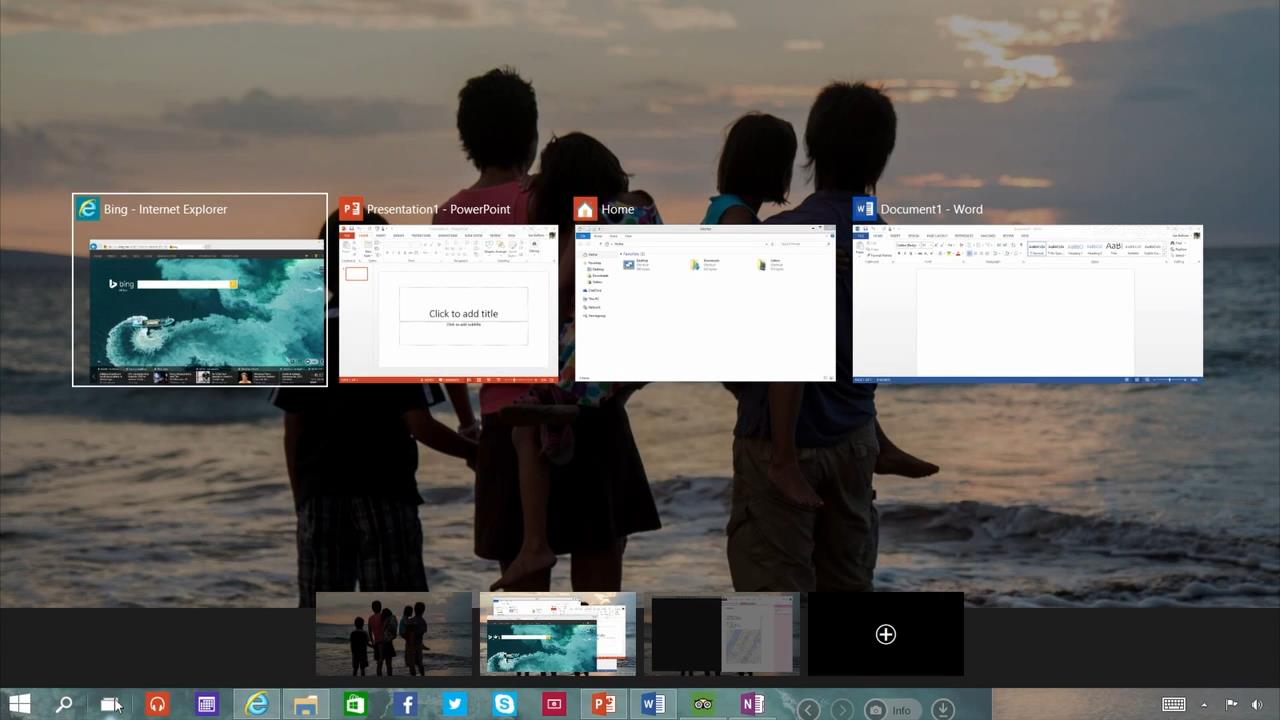
The task view button in action in the Windows 10 Technical Preview.
The 'task view' button in action.

The task view button in action in the Windows 10 Technical Preview.
Unlike the 'virtual desktop' software, which can create new and full desktops, in the Windows 10 Technical Preview, the 'Taskbar' shows each opened application currently opened in other  desktops.


You cannot open the 'Charm Bar' by pointing the mouse on the right corners of the screen anymore, like you could in Windows 8 and 8.1. Instead, you will need to use the Windows' shortcut keys(Window+C) in order to open the Charm Bar.

These are the latest additions to the Windows operating system, and the most important ones. However, this is definitely not the final version of Windows 10, and through feedback and time, Microsoft will be constantly updating the Technical Preview and fixing it's bugs, and possibly, expanding it's application comparability.


Have you joined the Insider Program and tried out the Windows 10 Technical Preview yet, or are you going to wait for a more stable build? Leave your comments, feedback, opinions and issues in the comments section below!
READ THIS
Published On Entertainment Ghost At Saturday, October 04, 2014

Microsoft Reveals Windows 10 And It's Technical Preview: Here's Everything You Need To Know About It

with
Microsoft has officially revealed the next Windows OS, the all new Windows 10.

While everyone was expecting a Windows 9, Microsoft jumped straight to Windows 10. The project 'Threshold', and the 'Windows 9' leaks that surfaced around a bit earlier, are actually Windows 10, as revealed today, and there will be no Windows 9 at all.

Microsoft is calling Windows 10 the 'best Windows yet', and will be integrating extreme feedback this time around, all the way up to the release.


Integrating both Windows 7 and 8 Start Menu into one
The all-new 'start menu'.

The Windows 10 reveal shows a new start menu, which is basically a merging of both Windows 7 and Windows 8 start menus. While having a Windows 7-like start menu on the left side, the right side consists of Live Tiles from Windows 8, basically giving both the users who want the old start menu back, and those who liked the live tiles what they like into one thing.


The upgraded start-menu search in Windows 10.
The 'start menu' search.

The start-menu search also has a Windows 8 twist to it, as it will not only bring up things from your PC, but also the internet. It will also be in the task-bar as well, not only the start menu.


The Windows Store apps in Windowed Mode in Windows 10


As seen in the leak, you can now use the Windows Store and other full-screen only apps in windowed mode, unlike how in Windows 8 they were always full screen and you could not use them in windowed mode. You can also 'snap' them to sides now, and have full freedom with moving them around, resizing them and so on.

One of the major features revealed in the announcement, and according to the Vice President of Windows, Joe Belfiore, also the thing the Windows team is looking forward to getting a lot of feedback about, is the multi-tasking. The multi-tasking includes many things, such as the multi-desktops we already saw in the leaks, a new 'task view' button, and upgrades to the 'snap' feature.


The all-new task view button in Windows 10.
The new 'task view' button.

First off, the new 'task view' button. This is basically a feature we have already seen before in Windows, but this time, it's added onto the task-bar so you can easily access it anytime and view and switch through all open apps. It also lets you switch between your multi-desktops(see below).


The new snap suggestion feature in Windows 10.
The new 'snap suggestion' feature.

Next up, are the 'snap' feature updates. One of the updates(seen above), is the 'snap suggestion' update, which is basically, if you 'snap' one application on the screen, Windows will automatically suggest other open apps to the user to 'snap' on the remaining space on your display.


Windows 10 supports up-to 4 'snapped' applications at the same time on one display.
Up-to 4 applications can be snapped at the same time now.

You can now 'snap' up to 4 applications at the same time on your display now, as seen in the picture above, changing the traditional 2-applications-per-display we currently have.


The all-new multi-desktops of Windows 10.
The all-new multi-desktops.

Last but definitely not the least, the all new multi-desktop feature of Windows 10. This feature allows you to set-up different 'desktops' at once, and giving you quick and easy desktop switching, using the task view button(see above). You can now set up multiple desktops, having a different set of applications on each, to keep your computer better organized. A great example is that you can separate desktops into one which you can do your work on, while the other you can use for entertainment and other things. But of course, the use of this differs from person to person.


You can download the Technical Preview of Windows 10 and sign up for the 'Windows Insider Program', through which you can test the preview of Windows 10 and through the Windows Insider Program, give feedback on forming Windows 10 into what the users want, as the feedback will go directly to the Windows team, and Microsoft hopes that this will help them create the "best Windows yet". Although unfinished and unpolished, the Windows 10 Technical Preview will keep getting updated for several months and will require feedback for the updates all the way to the final product.

You can download the Windows 10 preview and sign up for the Insider Program from this link ---->
http://preview.windows.com

To learn more about the 'Windows Insider Program' and the Technical Preview from the Vice President of Windows himself, Joe Belfiore, watch the video released just recently from Microsoft:


Windows 10's retail version comes out in 2015, however, the pricing and exact release date is not revealed yet.

Leave your comments, opinions, feedback and issues in the comments section below!
READ THIS
Published On Entertainment Ghost At Tuesday, September 30, 2014

Videos and Pictures of Windows 9 Have Been Leaked, Showing New Features and More!

with
Source: YouTube.com

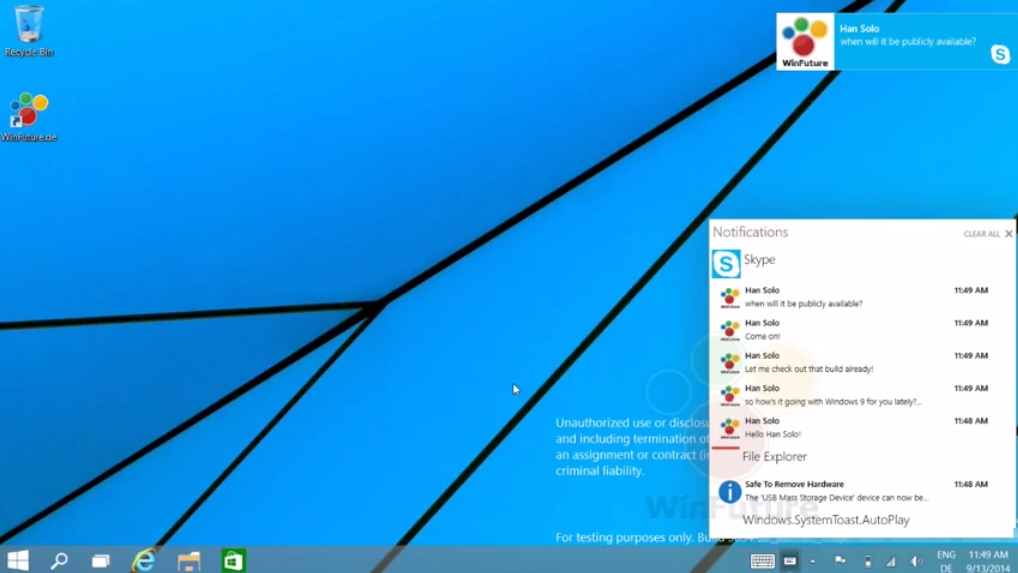
With the 'Technical Preview' set to appear either later this month or shortly afterwards, pictures and videos of Windows 9 have leaked around the internet just recently, and display several new features such as multi-desktop, the return of the start menu, and the ability to run apps such as the store in windowed mode and a new notifications bar(see above).


A picture of the Multi-Desktop

The multi-desktop feature appears to let the users switch between multiple sets of the desktop, allowing users to have more than one desktop in use at a time and manage through different set-ups, such as having different sets of apps open in each desktop, kind of like the "Workspaces" seen in Ubuntu Linux.


The Multi-Desktop in action.


The new notifications bar(see first picture) appears to give you notifications from the Windows Store apps, but it might have more to it than what it just appears to be currently.


Another screenshot from Windows 9

Unfortunately, the leaks do not show any major changes or new features(if there are any), but we do see the return of the fan beloved start menu and the multi-desktop, which appears to be a great addition and would help avoiding crowded tabs and taskbar. It cannot be said whether the notifications are a good addition or not, and users are giving mixed response towards it.

You can watch the Multi-Desktop and the notification bar in action in these videos leaked by WinFuture, below!


The Multi-Desktop in action:


The Notification Bar in Action:


Do you like the new features or are they a let down? Leave your comments, suggestions, feedback and issues in the comments section below!
READ THIS
Published On Entertainment Ghost At Sunday, September 14, 2014